For anyone transitioning to macOS from Windows or using a Mac for the first time, basic tasks such as copying and sharing links may initially feel unfamiliar. Whether you’re a student gathering research materials, a professional managing multiple projects, or someone who frequently shares content with friends and family, knowing how to copy a link on Mac is essential. Copying a link efficiently saves time, avoids errors, and helps you maintain a smooth workflow across applications and devices.
Beyond just copying URLs, understanding the full process also allows you to manage links in different contexts whether in browsers, email, notes, or even PDFs. macOS provides several integrated tools like Universal Clipboard, Safari’s Reading List, and Chrome’s bookmark manager that make link management effortless once you learn the steps. This guide will cover everything from basic copying techniques to advanced tips for managing links across apps and devices, ensuring that you can share, organize, and access links without confusion. By the end of this guide, you’ll have the confidence to handle links like a pro on your Mac.
Understanding Copy and Paste on macOS
Copying and pasting is a fundamental feature in any operating system, but macOS emphasizes simplicity and consistency. The universal keyboard shortcuts Command (⌘) + C for copy and Command (⌘) + V for paste work in nearly every application, from browsers to productivity apps. Links, however, may behave slightly differently than regular text. Some links appear as clickable hyperlinks, while others are embedded in documents or notes, requiring different techniques. By understanding how macOS handles links, you can ensure that every link you copy is accurate, usable, and ready to share.
How to Copy Links from Social Media on Mac
Copying links from social media platforms on your Mac is slightly different from browsers or documents, but it follows the same fundamental principles. Knowing how to copy a link on Mac is essential for efficiently sharing content from platforms like Facebook, Twitter, Instagram, or LinkedIn. Links can often be copied by right-clicking on the timestamp of a post, the share button, or the URL in the address bar. Some platforms also offer built-in “Copy Link” options directly on posts or content, making it easy to grab the link without navigating away from the page. Once copied, these links can be pasted into emails, messages, or documents. Understanding these methods ensures that you can share social media content efficiently, whether for personal sharing, professional work, or research purposes.
Using Third-Party Apps to Manage Links Efficiently
For users who deal with a large number of links daily, third-party apps can significantly improve workflow. Applications like Pocket, Evernote, Notion, and Raindrop.io not only allow you to save links but also categorize, tag, and annotate them for easier retrieval. These tools often come with browser extensions or desktop apps, enabling seamless copying and saving of links directly from any webpage. By integrating these apps into your Mac workflow, you can maintain a well-organized library of resources, ensuring that links are accessible when needed and reducing the risk of losing important information.
Copying Links in Safari
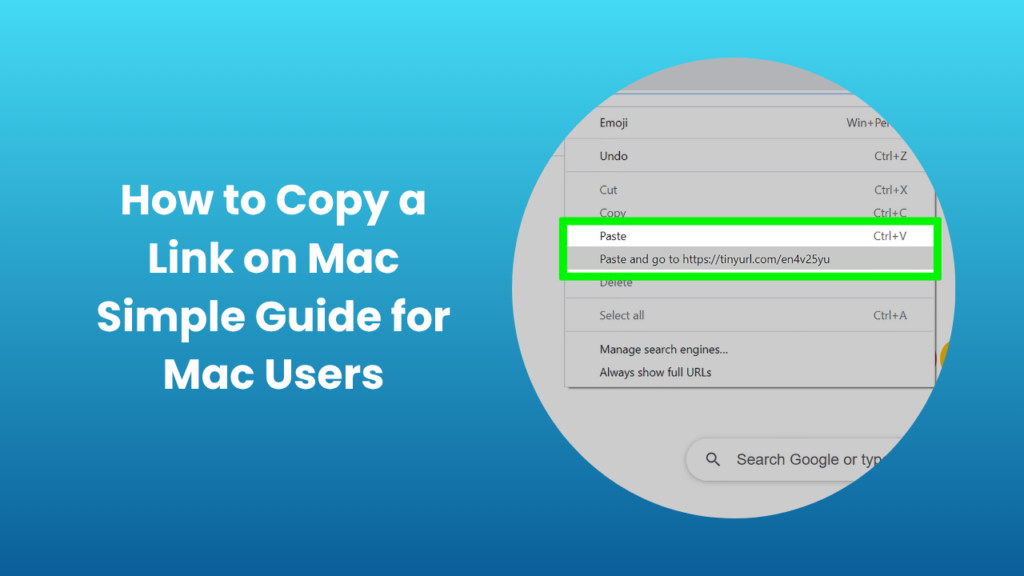
Safari, the default web browser on macOS, makes copying links easy and intuitive. The most straightforward method is to select the URL in the address bar and press Command (⌘) + C. Alternatively, right-clicking a hyperlink within a webpage allows you to copy the link directly without opening it. Safari also includes features for sending links directly via Mail or Messages, and it integrates with AirDrop for fast sharing between Apple devices. For users who manage multiple links daily, these built-in tools can significantly streamline the process. Additionally, Safari’s Reading List allows you to save links for later reference, ensuring that important resources are never lost.
Copying Links in Google Chrome
Many Mac users prefer Google Chrome for its speed, cross-platform syncing, and extended features. Copying links in Chrome is similar to Safari: highlight the URL in the address bar or right-click a hyperlink to copy it. Chrome also offers options to clean links by removing tracking parameters, generate QR codes for quick sharing, and sync links across all devices signed into your Google account. These features are particularly useful for professionals who collaborate online or students managing multiple research sources. Chrome also provides extensions for link management, making it easy to organize and share URLs efficiently.
Using Keyboard Shortcuts for Speed
Keyboard shortcuts are a hallmark of macOS productivity. Using Command (⌘) + C to copy and Command (⌘) + V to paste works across nearly all apps and browsers. Learning to rely on shortcuts can save substantial time compared to using a mouse or trackpad. When handling multiple links simultaneously, shortcuts allow you to copy, paste, and organize links quickly, keeping your workflow seamless. Mastering these shortcuts is particularly valuable for professionals, students, and researchers who regularly transfer information between apps.
Copying Links from Mail and Notes
Links aren’t always copied from browsers; they often appear in emails or notes. In Apple Mail, hovering over a hyperlink allows you to right-click and copy the address. In Notes, links may be attached to text, but selecting the linked text and copying it works similarly. Once copied, these links behave like any other URL, ready to paste into browsers, documents, or chat apps. Understanding these variations ensures that you can handle links efficiently across all types of content, avoiding errors or broken links.
Sharing Links Across Devices
One of macOS’s standout features is its seamless integration with other Apple devices. Universal Clipboard allows you to copy a link on your Mac and paste it directly into your iPhone or iPad. This works automatically when all devices are logged into the same iCloud account and connected to the same Wi-Fi network. With this feature, you no longer need to email links to yourself or rely on third-party apps, making multitasking across Apple devices smooth and efficient.
Advanced Link Management Tips
For power users who frequently handle links, macOS and third-party tools offer advanced ways to manage them. Bookmark managers in Safari and Chrome allow you to categorize and tag links for easy retrieval. Apps like Pocket, Evernote, and Notion can store large collections of links and even annotate them with notes or labels. Using cloud-synced apps ensures that your saved links are accessible across devices, whether for professional research or personal projects. Additionally, you can clean up long links with tracking codes using browser extensions or built-in tools, which ensures that the links you share remain clean and professional.
Troubleshooting Copying Issues
Even with macOS’s user-friendly design, you may encounter issues when copying links. Some links may include hidden formatting, while others may paste incorrectly into apps that don’t support formatted text. If this occurs, pasting as plain text can resolve most problems. Restarting the app or your Mac may also fix temporary glitches. Keeping macOS updated ensures compatibility with the latest applications and reduces the likelihood of errors while copying links.
Organizing and Managing Links
If you frequently copy links, organization is key. Safari’s Reading List, Chrome bookmarks, and apps like Notes or Reminders allow you to store and categorize links efficiently. Third-party apps like Pocket or Evernote provide additional options for annotating, tagging, and retrieving links quickly. Well-organized links save time, reduce stress, and improve productivity, especially when you’re working with multiple projects or researching online content.
Why This Small Task Matters
Copying links may seem minor, but mastering it has a significant impact on productivity. Students, professionals, and casual users all benefit from knowing the right methods. By understanding shortcuts, browser tools, and cross-device features like Universal Clipboard, you can manage links efficiently and avoid unnecessary frustration. Over time, these small improvements streamline your workflow, allowing you to focus on more important tasks without interruption.
FAQs
Can I copy a link without opening the webpage?
Yes, right-click on the hyperlink in most browsers and select “Copy Link.” You don’t need to visit the page first.
Why does my copied link sometimes appear too long?
Many websites add tracking codes to URLs. You can delete extra text manually or use a link-cleaning tool.
How do I copy a link from a PDF on Mac?
Hover over the link in the PDF, right-click, and select “Copy Link.” It works like copying links from a browser.
Can I copy and paste links between my Mac and iPhone?
Yes, Universal Clipboard lets you copy on Mac and paste directly on an iPhone or iPad.
What should I do if Command + C doesn’t work?
Check System Preferences to ensure shortcuts are enabled. Restarting your Mac often resolves temporary issues.
Conclusion
Mastering basic tasks like copying links on macOS can greatly enhance your productivity and efficiency. Knowing how to copy a link on Mac allows you to share, save, and organize links quickly and accurately across browsers, apps, and devices. With keyboard shortcuts, system features like Universal Clipboard, and best practices for organizing links, you can streamline your workflow and manage digital resources effectively. For students, professionals, and casual users alike, this small but essential skill reduces frustration, saves time, and ensures that every link is handled properly. By practicing these techniques and exploring advanced management tools, copying and managing links on your Mac will soon become effortless, helping you stay organized and productive in your digital tasks.