Key Takeaways
- The Windows full screen hotkey lets you instantly toggle between normal and full-screen modes.
- Common shortcuts include F11, Alt + Enter, and Fn + F11, depending on your application or laptop model.
- You can create custom shortcuts using tools like AutoHotkey or Windows utilities for more control.
- Full-screen mode improves focus, productivity, gaming experience, and presentation quality.
- It’s a simple yet powerful way to reduce distractions and get more done efficiently.
Windows Full Screen Hotkey
If you’ve ever wished for a cleaner, distraction-free workspace, the Windows full screen hotkey is your best friend. One quick press can transform your screen, removing toolbars, tabs, and notifications so you can focus entirely on your current task.
Whether you’re browsing the web, editing documents, coding, gaming, or presenting slides, mastering full-screen shortcuts can save time and enhance your overall digital experience.
In this detailed guide, we’ll explore how full-screen mode works, the most popular shortcuts across apps, customization techniques, and troubleshooting steps so you can take full control of your screen and work smarter every day.
Why the Full-Screen Shortcut Matters
Full-screen mode is more than a visual preference; it’s a productivity booster. When you remove on-screen clutter, your brain processes information faster and stays focused longer. Instead of being distracted by tabs or notifications, you can immerse yourself completely in your task.
It’s especially useful in scenarios like:
- Watching tutorial videos or films without distractions.
- Delivering presentations that need a clean, professional look.
- Gaming sessions where every inch of the screen counts.
- Reading eBooks or research material without cluttered toolbars.
The full-screen hotkey saves you from navigating through menus, offering instant control and smoother transitions.
Benefits of Using Full-Screen Mode
- Improved Focus: By removing visual clutter such as the taskbar, tabs, and notifications, you can concentrate deeply on your work or content.
- Better Presentation Quality: Perfect for slideshows, demos, or client meetings where you want a sleek and professional display.
- Enhanced Viewing Experience: When streaming, editing, or gaming, full-screen provides an immersive environment with zero distractions.
- Reduced Eye Strain: A cleaner screen with fewer moving elements helps reduce mental and visual fatigue.
- Time Efficiency: Instead of clicking through menus, you can switch to full-screen with a single keystroke.
These advantages make the Windows full screen hotkey essential for professionals, students, and casual users alike.
How Full-Screen Mode Boosts Productivity and Focus
One of the biggest advantages of using the Windows full screen hotkey is its ability to create a focused digital environment. When you enter full-screen mode, your screen becomes free of toolbars, notifications, and background distractions, allowing your mind to stay centered on one task. This is especially valuable for professionals who need deep concentration such as writers, developers, designers, and analysts.
Studies show that removing visual clutter can improve concentration and task efficiency by up to 30%. Whether you’re reading a report, editing a document, or managing complex data, full-screen mode helps you work smarter by minimizing interruptions. It’s not just a display feature it’s a productivity enhancer built right into Windows.
Best Practices for Using Full-Screen Shortcuts Effectively
To make the most out of the Windows full screen hotkey, it’s important to use it strategically. Start by memorizing the common shortcuts F11 for browsers, Alt + Enter for games and videos, and F5 for presentations. Try to integrate these shortcuts into your daily routine instead of navigating through menus every time.
If you frequently multitask across apps, consider setting up custom shortcuts using AutoHotkey or PowerToys to maintain consistency. Combine full-screen mode with Focus Assist to block notifications, and enable Dark Mode or Eye Comfort settings for longer sessions. Using these techniques together turns your Windows environment into a distraction-free workspace optimized for both performance and comfort.
Common Full-Screen Hotkeys in Windows
Here are the most frequently used shortcuts across applications:
| Application Type | Shortcut | Description |
| Web Browsers | F11 | Universal shortcut to toggle full-screen mode in browsers like Chrome, Edge, and Firefox |
| Media Players | Alt + Enter | Commonly used in video players or games |
| PowerPoint | F5 or Shift + F5 | Starts or resumes slideshow mode |
| Remote Desktop | Ctrl + Alt + Break | Switches between windowed and full-screen in RDP sessions |
| Laptops | Fn + F11 | Required on devices where F-keys have dual functions |
These shortcuts are your quick-access tools to full-screen functionality. Once you memorize them, you’ll navigate your system more fluidly without using your mouse.
How to Use the Windows Full Screen Hotkey
Follow these simple steps to activate full-screen mode on Windows:
- Open the program or browser you want to use.
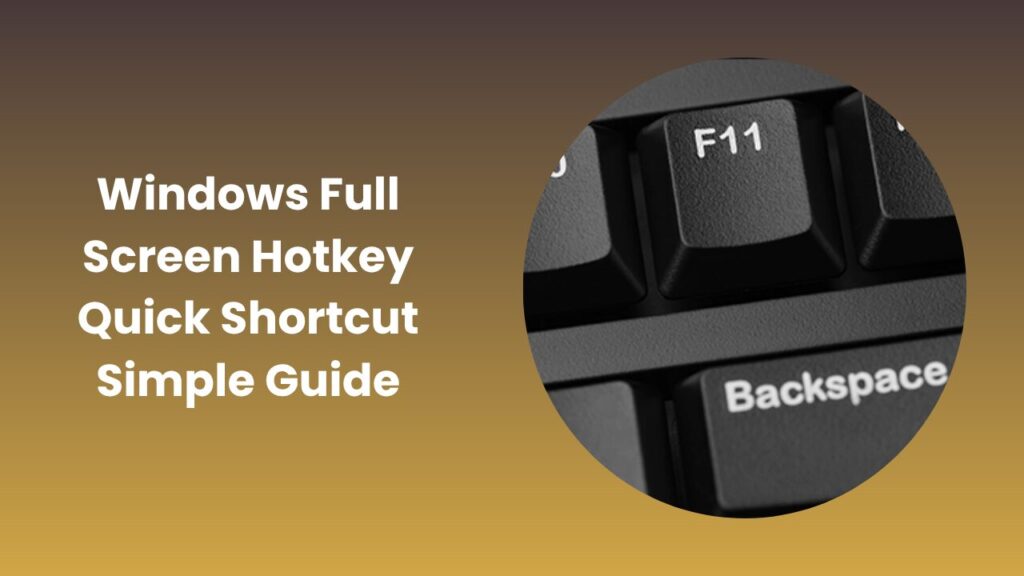
- Press F11 to enter full-screen mode.
- To exit, press F11 again or Esc if that doesn’t work.
- If unavailable, go to the app’s View → Full Screen menu option.
- In games or media players, try Alt + Enter instead.
These steps make it easy to switch between immersive and standard modes with no extra clicks required.
App-Specific Variations and Examples
Different programs handle full-screen mode differently. Let’s break it down:
1. Web Browsers
Chrome, Edge, Firefox, and Opera all use the F11 key. Press once for full-screen and again to exit. This hides toolbars, tabs, and address bars, giving you a distraction-free reading view.
2. Video Players and Games
For apps like VLC, Windows Media Player, and most PC games, Alt + Enter toggles between windowed and full-screen modes. It’s especially useful when gaming on multiple monitors.
3. Productivity and Reading Apps
Apps like PowerPoint, Adobe Acrobat, or Microsoft Word’s Reading Mode use different shortcuts:
- F5 or Shift + F5 for PowerPoint slideshow.
- Ctrl + L for Adobe Acrobat’s reading mode.
4. Remote Desktop
When managing remote systems, use Ctrl + Alt + Break to toggle full-screen on and off. It’s crucial for users handling multiple remote sessions.
How to Customize Your Own Full-Screen Hotkey
If default shortcuts don’t fit your workflow, you can easily create a custom one.
Method 1: Using AutoHotkey
AutoHotkey lets you automate keystrokes and actions.
Steps
- Download and install AutoHotkey.
- Right-click your desktop → New → AutoHotkey Script.
Open the file and paste this code:
^!f::Send {F11}
- This makes Ctrl + Alt + F your new universal full-screen command.
- Save and run the script.
- To make it permanent, add it to Windows Startup.
Method 2: Built-In App Settings
Many programs let you change hotkeys directly in Settings → Shortcuts or Preferences → Keyboard.
Method 3: Using Windows PowerToys or DisplayFusion
Advanced tools like PowerToys or DisplayFusion allow global shortcut management, making them perfect for multi-monitor setups or power users.
Troubleshooting Common Issues
If the full-screen shortcut isn’t working:
- App Compatibility: Some apps don’t support F11; check for a menu option under “View → Full Screen.”
- Laptop Function Key Lock: On laptops, hold Fn + F11 if your F-keys have dual uses.
- Driver Conflicts: Outdated GPU or keyboard drivers may block shortcut functionality.
- Browser Extensions: Disable extensions that may override hotkeys.
- Custom Key Bindings: Reset app shortcuts to default if modified.
If all else fails, restarting the app or your computer often resolves the issue.
Accessibility and Focus Enhancements
Full-screen mode is great for focus, but accessibility is equally important. Windows provides several features to ensure everyone benefits:
- Magnifier: Zoom in on screen elements for better visibility.
- Narrator: Reads on-screen text aloud for visually impaired users.
- High-Contrast Mode: Enhances color visibility and reduces strain.
- Focus Assist: Silences notifications during presentations or video playback.
These built-in tools help you personalize full-screen experiences to your comfort and accessibility needs.
Real-World Scenarios and Productivity Examples
The Windows full screen hotkey can transform your everyday computing experience:
- During Presentations: Deliver clutter-free slides to keep your audience focused.
- While Reading or Researching: View documents or eBooks without browser distractions.
- Gaming Sessions: Enjoy immersive gameplay without toolbars or pop-ups.
- Video Editing: Preview your work in full detail before final rendering.
- Remote Work: Stay concentrated during virtual meetings or remote sessions.
Even casual users find full-screen mode handy for YouTube, Netflix, or web reading.
FAQs
What is the universal Windows full screen hotkey?
The universal shortcut is F11, which works on most browsers and many Windows apps to switch between normal and full-screen mode.
How do I exit full-screen mode?
You can press F11 again or the Esc key. Some applications also show a small on-screen exit icon.
Can I create a custom shortcut?
Yes, you can use tools like AutoHotkey or PowerToys to create your own personalized full-screen shortcut.
What’s the difference between full-screen and maximized mode?
A maximized window shows the title bar and taskbar, while full-screen mode hides them for a completely distraction-free view.
Why doesn’t F11 work on my laptop?
Try pressing Fn + F11 or turn on Function Lock, since many laptops use the F-keys for multiple functions.
Conclusion
The Windows full screen hotkey is one of those simple yet powerful features that can completely transform how you use your computer. With just a single keypress, you can create a cleaner, distraction-free environment that helps you focus better, work faster, and enjoy content more fully. Whether you’re reading documents, delivering a presentation, editing videos, or playing games, entering full-screen mode instantly enhances your overall experience by removing unnecessary visual clutter.
Using shortcuts like F11 or Alt + Enter, you can switch between modes effortlessly without wasting time on menus or settings. And if you prefer more control, tools like AutoHotkey or PowerToys allow you to customize your own full-screen hotkeys to match your workflow. If the shortcut doesn’t work, a quick check of function key settings or browser extensions usually resolves the issue.