When working on a MacBook, efficiency and quick access to recently copied text or images can make a huge difference in productivity. Many users wonder if there is a way to manage or view their MacBook clipboard history, since the native macOS clipboard only stores one item at a time. This limitation often leads to frustration when copying multiple snippets or files. Understanding how the clipboard functions, its limitations, and the tools available to extend its capability is essential for anyone who wants to optimize their workflow on a Mac. For students, professionals, and even casual users, the clipboard plays a bigger role than we often realize. Every copy and paste action saves time and reduces manual effort, yet when the system does not remember more than the last copied item, that efficiency gets disrupted. This is why so many people seek out ways to expand clipboard functionality and why it has become such a central topic for improving digital productivity on macOS.
How the Clipboard Works on macOS
The clipboard on a Mac is a temporary storage system where the last copied item whether text, an image, or a file is held until it is replaced with something new. This means that if you copy a paragraph and then copy an image, the paragraph is lost and only the image remains in the clipboard. Unlike some operating systems or third-party tools, macOS does not natively offer a clipboard manager that records multiple copied items.
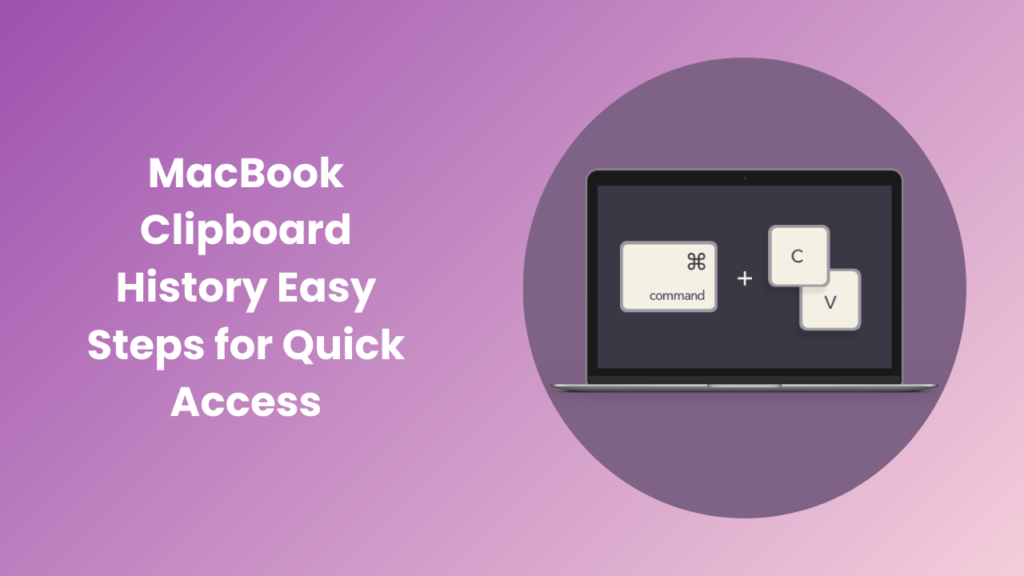
The standard clipboard can be accessed using the usual commands: Command + C for copy and Command + V for paste. However, this only retrieves the most recent item. For users who frequently juggle multiple pieces of content, this can become limiting. The absence of built-in MacBook clipboard history is what leads many MacBook owners to look for alternative solutions.
The Limitations of the macOS Clipboard
Apple designed the clipboard to be simple, lightweight, and straightforward. But simplicity can sometimes feel restrictive. The primary limitation is that it holds only one item at a time. Once something new is copied, the previous item disappears. This limitation can disrupt workflows, especially for researchers, writers, designers, and anyone who works with large amounts of information.
Another issue is that the clipboard does not have a built-in way to view its contents beyond the most recent copy. Users cannot scroll back to see what was copied earlier in the day, nor can they pin important items for later use. This creates inefficiency for those who rely on frequent copying and pasting.
Using Third-Party Clipboard Managers
The most common solution for extending the capabilities of the clipboard on Mac is to use a third-party clipboard manager. These applications run in the background, storing every item you copy so that you can revisit it later. Some even allow you to organize copied items into categories, search through your clipboard history, and sync across devices.
Clipboard managers are particularly helpful for professionals who need to reference multiple quotes, links, or images without switching back and forth between documents. Writers can store multiple drafts of sentences, designers can quickly reuse snippets of code, and business users can save email templates or responses for quick use.
Popular Clipboard Manager Options for Mac
There are several reliable clipboard managers available for macOS. While they vary in design and features, most offer the same core benefit: extending the clipboard to remember more than one item. Applications like CopyClip, Paste, and Alfred’s clipboard extension are popular choices because they integrate seamlessly with macOS and provide intuitive interfaces.
These managers not only expand clipboard functionality but also include powerful search tools, cloud sync, and shortcuts that make accessing older copied items instant. Some even support multimedia content, allowing users to store images, links, and files without hassle.
Why Clipboard History Matters for Productivity
Clipboard history is not just a convenience—it can significantly impact productivity. When you do not need to repeatedly copy and re-copy information, tasks become faster and more seamless. This reduces the mental load of remembering what was last copied, allowing you to focus on creating rather than managing data.
For anyone who uses their MacBook extensively for work or study, the ability to access clipboard history is transformative. It saves time, reduces errors, and creates a smoother workflow overall.
Managing Clipboard History Securely
While third-party clipboard managers offer significant benefits, they also raise questions about privacy and security. Since these apps temporarily store everything you copy, sensitive information like passwords, private messages, or financial data can end up in the clipboard history. To manage this risk, many apps include security features such as the ability to exclude specific apps from being tracked, automatic deletion after a set period, and encrypted storage.
When selecting a clipboard manager, it is essential to choose one from a reputable developer, preferably with positive reviews and transparent privacy practices. This ensures that your information remains safe while you enjoy the benefits of extended clipboard history.
How to View and Clear Clipboard Data on macOS
If you do not want to install third-party tools, you can still check the contents of your clipboard manually. macOS offers a simple way to see what is currently stored. By opening the Finder and selecting Edit > Show Clipboard, you can view the most recent copied item. However, as mentioned earlier, this only shows one item at a time and does not provide a history.
Clearing the clipboard is as simple as copying something else—such as a blank space. This overwrites the previous entry and ensures that sensitive data is no longer accessible. Some users regularly clear their clipboard as a security measure.
Alternatives to Clipboard Managers
In addition to clipboard managers, other productivity apps integrate clipboard history features. Tools like Notion, Evernote, or even built-in text editors can serve as makeshift clipboard storage by pasting copied items for later use. While not as seamless as a dedicated manager, these methods can be helpful for users who prefer not to install additional software.
Some professionals also rely on cloud storage or note-taking apps synced across devices. For example, copying text on an iPhone and pasting it on a MacBook is possible through Apple’s Universal Clipboard feature. Although it still only remembers the most recent copied item, it offers cross-device convenience.
FAQs
Does macOS have a built-in clipboard history feature?
No, macOS does not natively support clipboard history. It only stores the most recent item that was copied. To access clipboard history, you need to use a third-party clipboard manager.
How can I view what is currently on my clipboard?
You can check the current clipboard contents by going to Finder and selecting Edit > Show Clipboard. This will display the most recent copied text or image but does not provide a history of older entries.
Are clipboard managers safe to use?
Most clipboard managers from reputable developers are safe to use. However, because they store everything you copy, it is important to review privacy policies and settings. Many offer options to exclude sensitive apps or clear history automatically.
What are some recommended clipboard managers for Mac?
Popular options include CopyClip, Paste, and Alfred. These apps offer a balance of ease of use, powerful features, and smooth integration with macOS. The right choice depends on your workflow and whether you prioritize search, organization, or sync features.
Can Universal Clipboard save multiple items?
No, Universal Clipboard allows you to copy something on one Apple device and paste it onto another, but it still only remembers the last copied item. It does not function as a true clipboard history tool.
How can I clear my clipboard?
To clear your clipboard, you can copy something else, such as an empty space. This overwrites the last item. Some third-party managers also include quick-clear functions for added security.
Do clipboard managers affect performance?
Most clipboard managers are lightweight and run in the background without significantly affecting system performance. However, if you use a manager that stores large files or images, you may notice minor memory usage.
Conclusion
While macOS offers a simple clipboard that works for basic needs, it falls short for users who require extended functionality. By exploring third-party tools, managing privacy wisely, and understanding the limits of the native system, MacBook owners can unlock greater efficiency and control over their copying and pasting tasks. Whether for writing, design, research, or business, having access to MacBook clipboard history can streamline workflows and save valuable time. Ultimately, the clipboard is one of the most frequently used features of any computer, yet it often goes unnoticed until its limitations become clear. By addressing those gaps through smart tools and habits, users can ensure their MacBook becomes an even more powerful companion for daily tasks and long-term productivity.