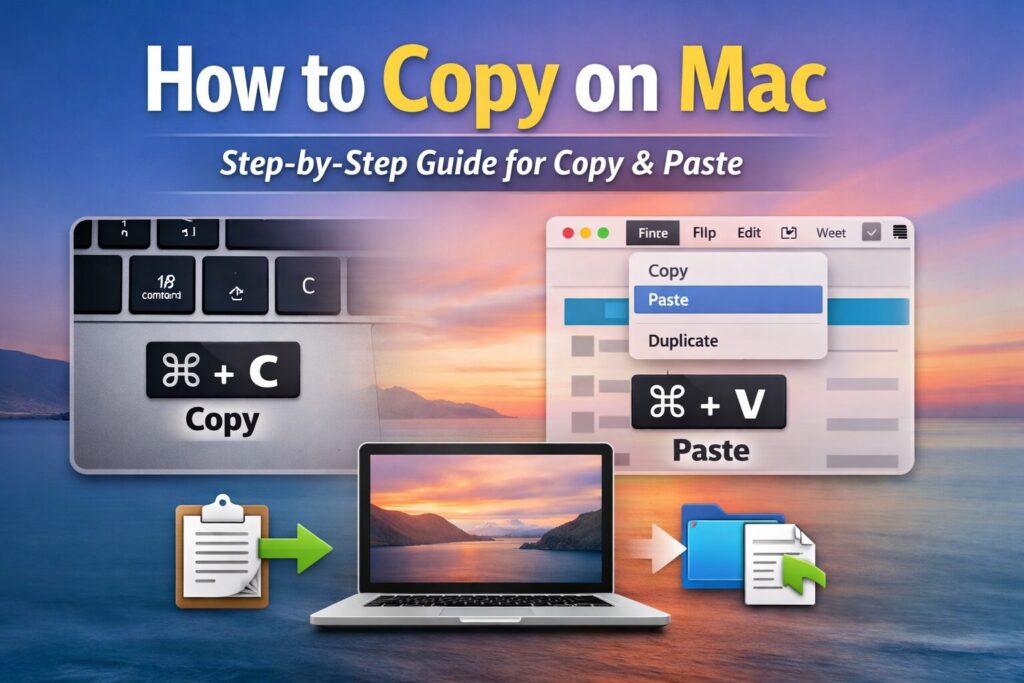
Copying and pasting is one of the most essential skills for any computer user, and Mac users are no exception. Whether you are a student preparing assignments, a designer working with creative assets, a developer managing code, or a professional handling documents and emails, mastering copy and paste on Mac can dramatically improve your workflow.
macOS offers several powerful tools that make copying and moving content simple and efficient. Users can copy text, images, files, folders, and screenshots using keyboard shortcuts, Finder tools, and Apple’s Universal Clipboard feature. These options make it easier to move information between applications, organize files quickly, and maintain a smooth workflow.
Many people only use basic copy and paste commands without realizing that macOS includes advanced productivity features. With the right knowledge, you can move files faster, paste content without formatting issues, and even copy information between different Apple devices.
Key Takeaways
- Use Command (⌘) + C to copy and Command (⌘) + V to paste content.
- Move files instead of copying them using Option + Command + V.
- Duplicate files quickly with Command + D.
- Paste text without formatting using Command + Option + Shift + V.
- Universal Clipboard allows copying content between Apple devices.
- Clipboard manager apps help store multiple copied items.
- Simple troubleshooting methods can fix most copy and paste problems.
Copy Using Keyboard Shortcuts
Keyboard shortcuts are the fastest and most efficient way to copy and paste on a Mac. Instead of relying on menus or mouse actions, users can complete tasks instantly using simple key combinations.
Basic Copy and Paste
To copy something on Mac:
- Select the text, image, or file you want to copy.
- Press Command (⌘) + C on your keyboard.
- Navigate to the location where you want to place the copied content.
- Press Command (⌘) + V to paste.
These shortcuts work across nearly all applications including web browsers, text editors, design software, and messaging apps.
Using keyboard shortcuts reduces the need for repetitive mouse clicks and significantly improves workflow speed.
Moving Files Instead of Copying Them
Sometimes you may want to move a file instead of creating a duplicate. macOS provides an easy shortcut for this process.
Follow these steps:
- Copy the file using Command + C.
- Open the destination folder.
- Press Option + Command + V.
This command moves the file instead of duplicating it. It is particularly useful when reorganizing folders or cleaning up storage space.
Duplicating Files Quickly
Another useful command is the duplicate shortcut.
To duplicate a file or folder:
- Select the item.
- Press Command + D.
This instantly creates a copy in the same location.
Copying Text, Images, and Files
macOS makes copying different types of content simple and consistent across applications.
Copying Text
To copy text:
- Highlight the text you want.
- Press Command + C.
- Move to the new document or location.
- Press Command + V to paste.
Copying Images
Images can be copied from websites, documents, and applications.
To copy an image:
- Right-click the image.
- Select Copy Image.
- Paste it into another application using Command + V.
Copying Files in Finder
Finder is the file management system used in macOS. It allows you to organize and move files easily.
To copy files using Finder:
- Select the file.
- Press Command + C.
- Navigate to the destination folder.
- Press Command + V.
Paste Without Formatting
When copying text from websites or documents, formatting such as fonts, colors, and spacing may come with it. This can create problems when pasting into a document with different formatting styles.
To paste plain text without formatting:
Press:
Command + Option + Shift + V
This pastes the text while matching the formatting of the destination document.
Copying Screenshots on Mac
macOS includes powerful screenshot tools that allow users to capture and copy screen content quickly.
Copy a Portion of the Screen
Press:
Command + Shift + 4
Then hold the Control key while selecting the screen area.
This copies the screenshot directly to the clipboard so it can be pasted instantly.
Copy the Entire Screen
Press:
Command + Shift + 3 + Control
The entire screen will be copied to the clipboard.
You can paste the screenshot directly into apps such as:
- Messages
- Notes
- Slack
- Photoshop
Universal Clipboard
One of the most powerful macOS productivity features is Universal Clipboard. It allows users to copy content on one Apple device and paste it on another.
For example, you can copy text on your iPhone and paste it into your Mac.
Requirements for Universal Clipboard
To use this feature:
- Both devices must be signed into the same Apple ID
- Wi-Fi and Bluetooth must be enabled
- Handoff must be turned on
Enable Handoff in:
System Settings → General → AirPlay & Handoff
After enabling this feature, you can copy content on one device and paste it on another seamlessly.
Clipboard Manager Apps
By default, macOS stores only one copied item at a time. If you copy something new, the previous item is replaced.
Clipboard manager apps expand this capability.
These apps allow you to:
- Store multiple copied items
- Access clipboard history
- Search previously copied content
- Organize clipboard data
- Sync clipboard across devices
Popular clipboard manager apps include:
- Paste
- CopyClip
- Clipy
Troubleshooting Copy and Paste Issues
Occasionally, the copy and paste function may stop working due to temporary system errors.
Here are some quick solutions.
Restart the Application
Close and reopen the app where the problem occurs.
Restart macOS
A full system restart often resolves temporary glitches.
Reset Clipboard Using Terminal
Open Terminal and type:
killall pboard
Press Enter.
This refreshes the clipboard service.
Check Privacy Settings
Go to:
System Settings → Privacy & Security
Ensure that apps are allowed to access clipboard functions.
Productivity Tips for Faster Workflow
To maximize efficiency while copying and pasting, consider these expert tips.
Use Split View
Place two applications side by side to quickly move information between them.
Learn Keyboard Shortcuts
Keyboard shortcuts significantly speed up repetitive tasks.
Use Clipboard Managers
These tools allow you to reuse previously copied items without copying them again.
Organize Files in Finder
Proper file organization makes copying and moving files easier.
Common Mistakes to Avoid
Many users unintentionally slow down their workflow by making small mistakes.
Common issues include:
- Forgetting to paste without formatting
- Creating duplicates instead of moving files
- Losing clipboard content by copying something new
- Not using keyboard shortcuts
- Ignoring powerful features like Universal Clipboard
FAQs
How do I copy using only the trackpad?
Highlight the content using the trackpad, then perform a two-finger tap to open the context menu and select Copy.
Can I copy multiple items at once?
Yes. Clipboard manager apps allow you to store multiple copied items and reuse them later.
Why does copied text lose formatting?
Some apps automatically remove formatting. Use Command + V to keep formatting or Command + Option + Shift + V for plain text.
Why is copy and paste not working on my Mac?
This usually happens due to a temporary system issue. Restart the application, restart macOS, or reset the clipboard using the Terminal command killall pboard.
Conclusion
Learning how to copy and paste on Mac is a simple skill that can significantly improve productivity. By mastering keyboard shortcuts, Finder file management, screenshot tools, and Universal Clipboard, users can move information quickly and efficiently between applications and devices.
Features such as clipboard managers and paste-without-formatting commands further enhance workflow by reducing repetitive actions and maintaining consistency in documents.
With regular practice, these tools become second nature, allowing Mac users to work faster, stay organized, and complete tasks with greater accuracy. Whether you are managing files, creating content, or collaborating across devices, understanding how to use copy and paste effectively is an essential part of maximizing the macOS experience.