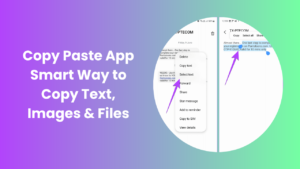
The iPhone has simplified countless digital tasks, from browsing to productivity. Among the most used features is copy and paste, which depends on the clipboard to move data. Yet many users are curious about iOS clipboard history, whether it can be retrieved, how it works, and what privacy risks may exist.
This curiosity is natural because copying and pasting feels effortless, yet people often forget that what happens behind the scenes matters. Imagine a moment when you copied a long password or an important address and then accidentally copied something else before pasting it. That information vanishes instantly, and many users wonder if there is a hidden archive they can return to. For iPhone users, this leads to questions about whether Apple intentionally left out clipboard history, how this choice affects everyday productivity, and whether there are workarounds or apps that provide an alternative.
How the Clipboard Works on iOS
The clipboard serves as a temporary memory tool. When you copy text, images, or files, iOS stores that content briefly until it is pasted or replaced. Once a new item is copied, the previous one is overwritten. This lightweight design prevents unnecessary storage use and keeps the system fast.
Unlike desktop operating systems, which may include advanced clipboard history managers, iOS keeps things minimal. Apple designed this system to reduce risks. Because the clipboard often contains sensitive data, it avoids storing a record that could expose private details. After a restart or a new copy action, the stored item disappears completely.
Apple has always prioritized efficiency, and the clipboard reflects that. For example, it’s engineered to consume minimal system resources, making copy and paste instantaneous. Users rarely think about the technology behind it, but every copy command triggers memory allocation, and every paste request retrieves that memory instantly. This seamlessness is what makes iOS feel fluid even though the process is temporary.
Can You View Clipboard History on iOS?
By default, iOS does not allow users to see a history of copied items. While this may feel restrictive, Apple’s focus is on protecting user data. If clipboard history were stored permanently, it could include personal or financial details that become vulnerable to malicious apps. The tradeoff is convenience versus privacy, and Apple leans firmly toward security.
Imagine copying a bank account number, a private medical note, or a confidential business document. If iOS kept every item stored in a retrievable history, these details could be accessed by apps running in the background. Even with permissions, this would create new vulnerabilities. Apple has chosen instead to maintain a clipboard that is ephemeral, giving users one active item at a time.
Exploring iOS Clipboard History Alternatives
Since there is no built-in feature, users often turn to external solutions. Third-party clipboard manager apps provide a way to store multiple copied entries, revisit them later, and even organize them by category. Some offer syncing across devices for added convenience. These apps can be useful, but they require access to clipboard data, which raises privacy concerns.
Apple also provides a partial solution within its ecosystem. Universal Clipboard allows users to copy content on one Apple device and paste it on another, such as from iPhone to Mac. This does not create a full history log, but it expands how the clipboard can be used across platforms, improving productivity within the Apple ecosystem.
In professional environments, third-party solutions may help manage workflows. Writers, developers, and students often copy multiple references, code snippets, or notes during research. Having an app that stores those items in order is extremely valuable. Still, it requires weighing the benefits against the potential exposure of sensitive data.
Security and Privacy Considerations
Clipboard content may seem insignificant, but it often includes sensitive information like login credentials or private notes. To address these risks, Apple introduced clipboard transparency features starting with iOS 14. Whenever an app pastes from the clipboard, a banner notification appears at the top of the screen.
This ensures users know when an app is accessing clipboard data. Additionally, Apple enforces strict permission policies, preventing apps from reading the clipboard silently. Third-party managers still require full access, which makes choosing apps from reputable developers essential.
In many ways, Apple has pioneered awareness of clipboard privacy. Before these updates, many users didn’t realize how often apps accessed copied content. Now, every paste action creates transparency, forcing developers to respect user control. This aligns with Apple’s broader privacy strategy, which emphasizes protecting personal data from unnecessary exposure.
Practical Uses of the Clipboard
Even without a history function, the clipboard is indispensable. Users copy addresses, phone numbers, messages, and links countless times a day. It plays a role in work-related productivity, from transferring citations to moving small data snippets between applications. For creative workflows, it helps when handling images, quotes, or edits. The clipboard might be invisible, but its influence on iOS usability is immense.
Consider students working on essays. They often copy references, research passages, and links between browsers and note apps. While each copied item overwrites the previous one, the clipboard still speeds up this process. Professionals in corporate environments rely on it as well, often copying meeting IDs, email drafts, or snippets of code. In both cases, the clipboard is central to productivity.
Limitations of Not Having Clipboard History
The main drawback is that once data is replaced, it cannot be retrieved. If a user accidentally overwrites something important, it is permanently lost unless previously pasted elsewhere. On desktops, clipboard managers often prevent this problem, but iOS does not allow similar functionality natively.
Background restrictions in iOS also limit how third-party clipboard managers work. They may not always capture every copied item, since the system prioritizes battery life and performance. This creates inconsistency compared to desktop environments where extended clipboard logging is seamless.
Another limitation involves user expectations. Many people assume iPhones, being advanced, should store more information. When they discover that clipboard history isn’t available, it feels like a missing feature. However, this is more about Apple’s design philosophy than a technical inability. Apple deliberately avoids implementing clipboard history to maintain system-wide security.
Alternatives to Relying on Clipboard History
Users can adapt by developing habits that minimize the risk of losing copied data. Pasting important content immediately into Apple Notes or other secure apps ensures it is saved permanently. Cloud-based apps like Google Keep or Evernote provide additional flexibility with syncing, making items accessible across devices.
For users deeply engaged in Apple’s ecosystem, Universal Clipboard is another reliable solution. It doesn’t offer full history, but it extends the clipboard across devices. By copying on one device and pasting on another, users can enjoy a level of flexibility not possible on a single iPhone.
Another option is automation. Shortcuts on iOS allow users to create automated actions for saving clipboard items to Notes or Files instantly. By setting up such workflows, users can mimic a history-like system without relying on external apps. This method combines security with convenience, giving power users more control.
FAQs
Does iOS save clipboard history?
No, iOS only stores the most recent copied item. Each new copy overwrites the last one for security reasons.
Can I recover something I copied earlier?
Not directly. If you didn’t paste it into another app before copying new content, it cannot be retrieved.
Are third-party clipboard apps safe?
They can be safe if chosen carefully, but since they access sensitive data, selecting trusted apps is crucial.
How is Universal Clipboard different from history?
Universal Clipboard lets you copy on one Apple device and paste on another, but it doesn’t save multiple items.
Why doesn’t Apple provide clipboard history?
Apple prioritizes privacy and efficiency. A permanent history could store sensitive data, which might expose users to unnecessary risks.
What’s the best way to keep copied items safe?
The most reliable approach is to paste them into Notes or another secure app immediately after copying.
Conclusion
The clipboard may be invisible, but it powers one of the most important everyday actions on iOS. For many users, the concept of iOS clipboard history often comes up when they wish to retrieve something they copied earlier but accidentally replaced. Apple’s design choice to avoid storing past data permanently reflects its commitment to user privacy and system efficiency. Instead of offering a built-in archive, iOS ensures that the last copied item is always available instantly while minimizing risks of exposure.
For users who need more than the basics, trusted third-party apps, automation through Shortcuts, or ecosystem features like Universal Clipboard can fill the gap. These methods don’t fully replace history, but they offer practical solutions that expand usability without compromising privacy. The key lies in being intentional pasting valuable content into secure apps, selecting reputable tools, and understanding the limits of the platform.