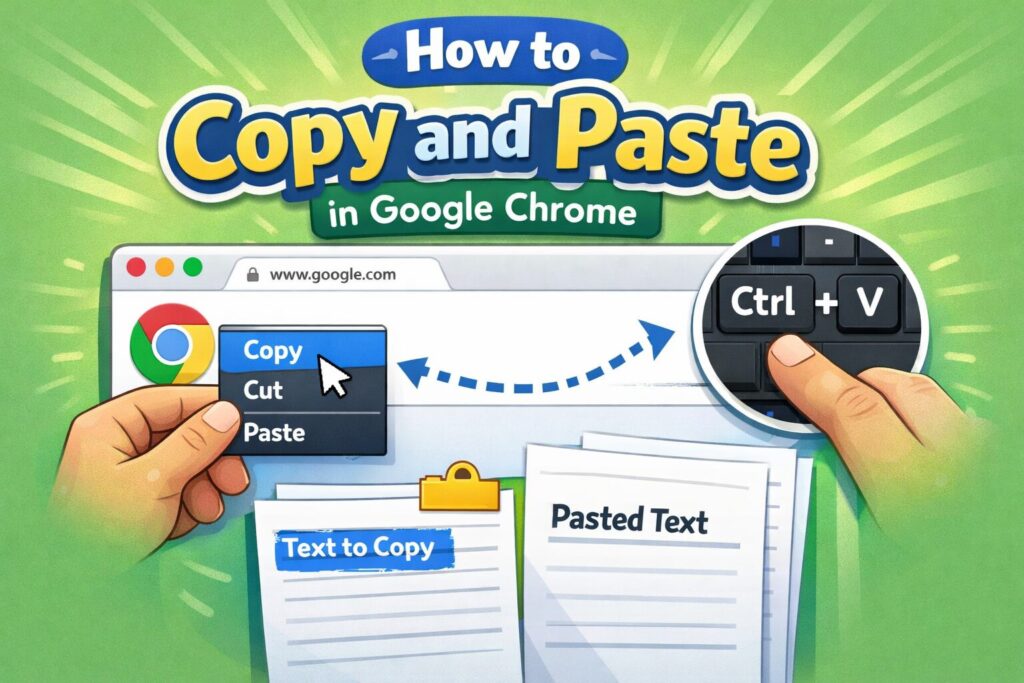
Copying and pasting content is one of the most common tasks in Google Chrome, yet many users still face problems like disabled right-click, broken formatting, or copy-paste not working at all. Whether you want to copy text, images, links, or full web pages, Chrome offers multiple built-in tools and shortcuts that make the process simple and efficient.
This complete guide explains how to copy and paste in Google Chrome using keyboard shortcuts, context menus, developer tools, and trusted extensions. You’ll also learn how to fix common Chrome copy-paste issues and copy content from restricted websites safely and responsibly. These methods work on the latest Chrome versions for Windows and Mac.
Key Takeaways
- Google Chrome supports multiple ways to copy text, images, and links
- Keyboard shortcuts are the fastest method for daily use
- Chrome context menu provides more control for links and media
- Restricted websites can still be accessed using safe Chrome tools
- Extensions enhance copy-paste functionality for advanced needs
- Troubleshooting steps fix most Chrome clipboard problems
- Responsible copying helps avoid copyright and plagiarism issues
How Copy and Paste Works in Google Chrome
Google Chrome uses your system clipboard to temporarily store copied content. When you copy text, an image, or a link, Chrome saves it until you replace it with new data or restart your device. This clipboard system works across browser tabs and other applications like documents, emails, and messaging apps.
Chrome supports plain text, formatted text, hyperlinks, and images. Knowing the right method to use ensures better accuracy and avoids formatting problems when pasting content elsewhere.
Different Ways to Copy and Paste Content in Chrome
Depending on what you want to copy, Chrome provides several reliable options.
Using Keyboard Shortcuts in Google Chrome
Keyboard shortcuts are the fastest way to copy and paste in Chrome.
Windows:
Copy: Ctrl + C
Paste: Ctrl + V
Select all: Ctrl + A
Mac:
Copy: Command + C
Paste: Command + V
Select all: Command + A
These shortcuts work across all Chrome tabs and other applications, making them ideal for quick content transfer.
Using the Right-Click Context Menu in Chrome
Chrome’s right-click menu allows you to copy content without using the keyboard. Simply highlight text, right-click, and select Copy. To paste, right-click in the destination and choose Paste.
This method is especially useful for copying:
- Image URLs
- Hyperlink addresses
- Selected formatted text
How to Copy an Entire Webpage in Chrome
To copy everything visible on a webpage:
- Press Ctrl + A (or Command + A on Mac)
- Press Ctrl + C to copy
- Paste into a document or notes app
For visual copies, Chrome’s Print Save as PDF option is a better choice.
How to Copy Text from Restricted Websites in Chrome
Some websites disable right-click or text selection to protect content. However, Chrome still allows access through safe methods like:
- Inspect Element (Developer Tools)
- Reader mode or simplified view
- Trusted Chrome extensions
These methods should only be used for personal, educational, or research purposes.
How to Copy Images, Media, and Links in Chrome
Chrome makes it easy to copy non-text elements:
- Copy Image: Paste images directly into apps
- Copy Image Address: Save the image URL
- Copy Link Address: Store URLs for sharing or reference
Best Chrome Extensions for Copy and Paste
Some Chrome extensions improve clipboard control and copying accuracy, especially for advanced users. These tools can help copy protected text, extract text from images, or store multiple clipboard entries.
Always install extensions from the official Chrome Web Store and check permissions carefully.
Fixing Copy and Paste Not Working in Chrome
If copy-paste stops working:
- Restart Chrome
- Clear browser cache
- Disable conflicting extensions
- Update Chrome to the latest version
Most clipboard issues are temporary and easy to resolve.
Responsible Copying and Copyright Awareness
Copying content from websites should always follow ethical and legal guidelines. Use copied material for learning, reference, or research, and avoid republishing content without permission. Proper attribution and rephrasing help maintain originality and trust.
Conclusion
Copying and pasting content in Google Chrome may seem simple, but knowing the right methods can save time and prevent frustration. From keyboard shortcuts and right-click options to developer tools and trusted extensions, Chrome provides multiple ways to copy text, images, and links efficiently.
If you face issues like copy-paste not working or restricted website content, Chrome offers practical solutions to overcome these problems safely. By using the correct tools and following ethical copying practices, you can improve productivity while respecting copyright rules. Mastering these Chrome copy and paste techniques makes everyday browsing, research, and content work smoother and more reliable.