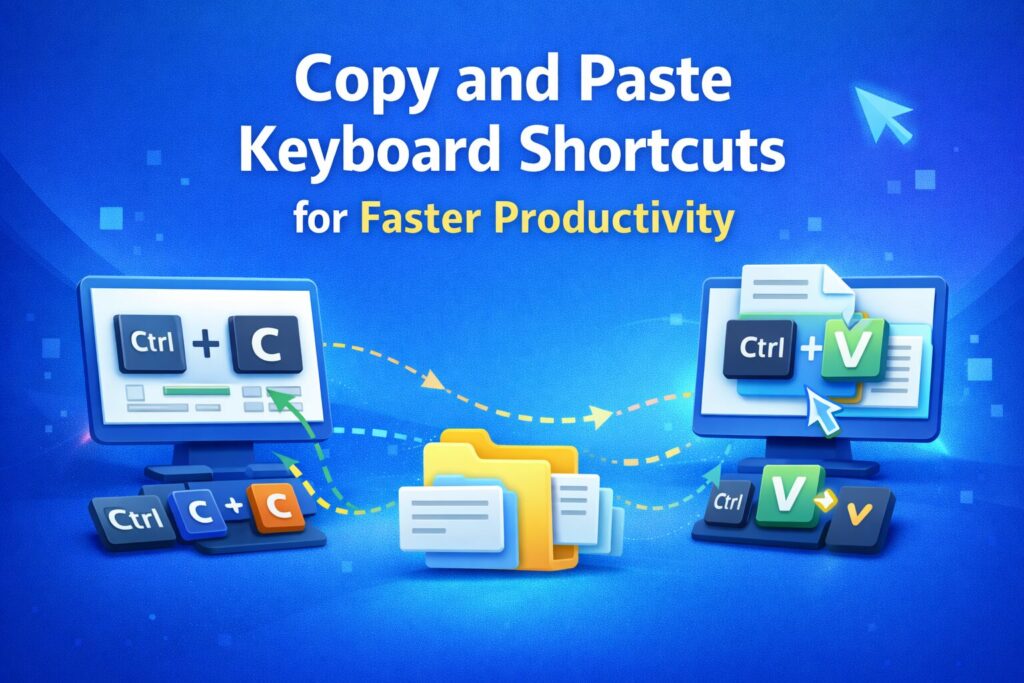
In today’s fast-paced digital environment, every second counts. Copying and pasting text, images, or files may seem like a small task, but when done repeatedly throughout the day, these actions consume significant time.
Mastering copy and paste keyboard shortcuts is a simple yet powerful way to increase productivity, reduce repetitive mouse movements, and maintain focus. Whether you’re a professional, student, or casual user, knowing the right shortcuts can streamline your workflow and minimize errors.
Key Takeaways
- Copy and paste keyboard shortcuts (Ctrl+C/Ctrl+V, Cmd+C/Cmd+V) save time and reduce repetitive mouse use.
- Advanced features like clipboard history, multi-clipboard tools, and “paste without formatting” improve workflow efficiency.
- Mastering platform-specific shortcuts for Windows and macOS ensures smooth multitasking across devices.
- Combining shortcuts with automation tools or macros can transform basic copy-paste into professional-level productivity.
- Avoid common mistakes like overwriting content or losing formatting by using built-in tools effectively.
Why Copy and Paste Keyboard Shortcuts Matter
Copying and pasting is one of the most frequently performed tasks on a computer. Using shortcuts instead of manual mouse actions saves precious seconds and helps maintain concentration.
For instance:
- Ctrl+C / Cmd+C: Instantly copies selected content.
- Ctrl+V / Cmd+V: Pastes content exactly where you need it.
These shortcuts eliminate the need for right-click menus and multiple clicks, keeping your workflow fluid and uninterrupted. Professionals, content creators, and students all benefit from faster navigation, reduced strain, and smoother multitasking.
Essential Copy and Paste Keyboard Shortcuts
Windows / Linux
- Copy: Ctrl + C
- Cut: Ctrl + X
- Paste: Ctrl + V
- Undo: Ctrl + Z
- Select All: Ctrl + A
macOS
- Copy: Cmd + C
- Cut: Cmd + X
- Paste: Cmd + V
- Undo: Cmd + Z
- Select All: Cmd + A
Advanced Copy and Paste Techniques
1. Use Clipboard History and Multi-Clipboard Tools
Modern systems allow you to access multiple copied items without losing prior content.
- Windows: Enable clipboard history with Win + V.
- macOS: Use Clipboard Manager or system utilities.
This is especially useful for writers, marketers, and developers who handle multiple snippets daily.
2. Paste Without Formatting
Avoid unwanted fonts, colors, or styles when copying between apps:
- Windows: Ctrl + Shift + V (supported apps)
- macOS: Cmd + Shift + V
If unsupported, paste into a plain text editor first to remove hidden formatting.
3. App-Specific Paste Modes
- Excel: “Paste Special” to paste only values, formulas, or formatting.
- Google Docs: Ctrl + Shift + V for clean text.
- Code Editors: Preserve indentation and syntax when pasting code.
Benefits of Keyboard Shortcuts
- Speed: Execute actions instantly.
- Focus: Stay on the keyboard without switching devices.
- Accuracy: Reduce errors from drag-and-drop or mouse clicks.
- Ergonomics: Less wrist movement prevents repetitive strain.
- Professionalism: Mastering shortcuts demonstrates efficiency and expertise.
Windows vs. macOS Differences
- Modifier Keys: Windows uses Ctrl, macOS uses Cmd.
- Clipboard Management: Windows supports built-in multi-item history; macOS often requires external apps.
- Terminal Use: Mac Terminal uses Cmd + C/V; Windows terminals may require Ctrl + Shift + C/V.
Understanding these variations ensures seamless work across platforms.
Building Effective Copy/Paste Habits
- Start with core shortcuts before exploring advanced ones.
- Practice daily for 10 minutes to reinforce muscle memory.
- Organize frequently used snippets using folders or categories.
- Minimize mouse use to maintain focus.
- Combine actions: Select All Copy Switch Paste.
Common Mistakes and Fixes
- Copying the Wrong Data: Always double-check selected content.
- Losing Formatting: Use “paste without formatting.”
- Clipboard Overwrites: Enable clipboard history to avoid losing data.
- Pasting in Wrong Window: Confirm the active program.
- System Lag: Clear clipboard history for large files or excessive entries.
Quick Practice Plan
- Copy and paste text in a document without the mouse for 5 minutes.
- Enable and test clipboard history retrieval.
- Practice “paste without formatting” in multiple apps.
- Create a macro to automate one repetitive task.
- Review and summarize learned shortcuts daily.
FAQs
What are the main copy/paste shortcuts?
Windows/Linux: Ctrl + C/V
macOS: Cmd + C/V
How do I paste without formatting?
Windows: Ctrl + Shift + V
macOS: Cmd + Shift + V
Can I access previous copied items?
Windows: Win + V
macOS: Third-party clipboard managers
Do shortcuts work for images/files?
Yes, the same commands apply to text, files, folders, and images.
How do I clear the clipboard?
Windows: Open Clipboard settings (Win + V) → Clear All
macOS: Copy a blank space or restart the system
Conclusion
Mastering copy and paste keyboard shortcuts is a foundational digital skill that boosts productivity, accuracy, and workflow efficiency. By combining basic shortcuts, advanced features like clipboard history, and consistent habits, you can work smarter, not harder.
Start small, practice daily, and integrate these shortcuts into your routine. Within days, your efficiency will improve dramatically, and repetitive tasks will become effortless.