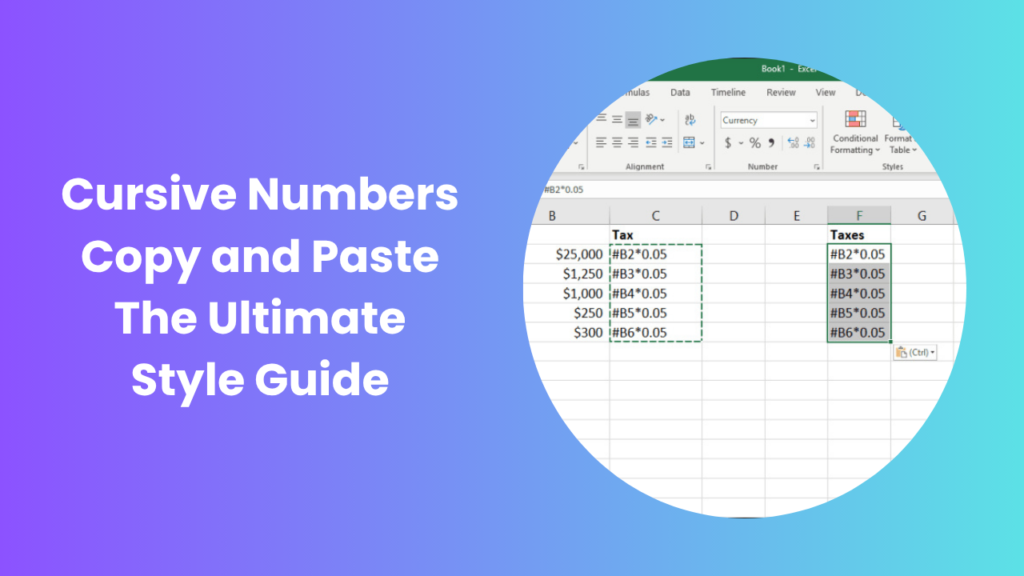
Microsoft Excel is a powerful tool used by millions of professionals worldwide to organize, analyze, and present data. While it’s filled with advanced formulas and charts, one of its most used features is the simple yet versatile act of copying and pasting. Knowing the different ways to copy and paste in Excel not only saves time but also improves accuracy and efficiency. Whether you’re a beginner learning the basics or an expert handling complex spreadsheets, understanding Excel’s copy-paste techniques can transform your workflow and make you more productive.
Copy and paste functions in Excel go beyond moving text or numbers. They allow you to copy formatting, formulas, comments, and even data validation rules. Let’s explore all the effective ways to copy and paste in Excel and how you can use them smartly.
Key Takeaways
- Excel provides multiple copy and paste methods for data, formulas, and formatting.
- Paste Special allows you to control what gets pasted,values, formats, or formulas.
- Keyboard shortcuts save time and make data handling faster.
- The Fill Handle feature helps in replicating formulas across cells.
- Using advanced paste techniques reduces repetitive work and mistakes.
Understanding Copy and Paste in Excel
At its core, copy and paste allow you to duplicate data from one location to another. When you copy a cell or a range, Excel stores it temporarily in the clipboard, and when you paste it, the content is placed into a new location. The key advantage of Excel’s copy-paste feature is its flexibility,you can choose whether to copy just the value, formula, or formatting depending on your task. This level of control is crucial when managing large or complex data sets where accuracy matters most.
Copy and paste can be performed using keyboard shortcuts, the mouse, or commands from the Ribbon. Let’s look into each method and understand their best uses.
Basic Copy and Paste Methods
One of the most common ways to copy and paste in Excel is through keyboard shortcuts. Simply select the data you want to copy, press Ctrl + C to copy it, move to the target cell, and press Ctrl + V to paste it. This method works for single cells, entire rows, columns, and even across worksheets or different Excel files. If you want to cut the data instead of copying, use Ctrl + X and then paste it wherever needed.
Another straightforward method involves using the right-click menu. After selecting the data, right-click and choose “Copy.” Then go to the target location, right-click again, and choose “Paste.” This method is especially handy for users who prefer using a mouse instead of the keyboard. You can also perform these actions from the Ribbon in the Home tab by selecting the Copy and Paste icons under the Clipboard group.
Each of these methods works for standard copy-paste operations, but Excel provides much more advanced techniques for precise control.
Advanced Copy and Paste Using Paste Special
Paste Special is one of Excel’s most powerful tools for managing data. Instead of copying everything from a cell, Paste Special lets you decide what exactly to paste. For example, you can copy only the formulas, values, formatting, comments, or validation rules. To access this feature, first copy your data, then go to the destination cell and press Ctrl + Alt + V. A dialog box will appear where you can choose your paste options.
If you’re copying a cell with a formula, you might want to paste only the calculated result rather than the formula itself. In that case, select “Values.” Similarly, if you only want to duplicate the formatting,like cell color, border, or font style,choose “Formats.” Paste Special also lets you perform operations like adding, subtracting, multiplying, or dividing the copied data with the destination cell’s values. This can save a lot of time when working on large numerical datasets.
For professionals, using Paste Special effectively can make complex data tasks much easier and cleaner.
Copying Data Using the Fill Handle
Excel’s Fill Handle is another quick way to copy data or formulas across multiple cells. It’s the small square located in the bottom-right corner of a selected cell. To use it, click and drag the handle over the cells you want to fill. Excel automatically adjusts formulas or copies the pattern based on the data. For instance, if you have a formula in cell C1 and drag the handle downward, Excel will automatically update the references for each new row..
This feature is especially useful for repetitive calculations or for extending data sequences, like dates or numbers. If you want to copy the exact same value without changing references, you can lock the formula using the dollar sign ($), such as “=$A$1+$B$1.” That way, Excel will not adjust the references when the formula is dragged or copied elsewhere.
Copying Only Formatting
Sometimes you might want to apply the same design or cell style to multiple areas without changing the data. In such cases, you can use the Format Painter tool. Simply select the cell that contains the formatting you want to replicate, click on the Format Painter (located on the Home tab in the Clipboard group), and then click on the destination cells. Excel instantly applies the same formatting, including borders, font style, and color.
You can also copy formatting using Paste Special by selecting “Formats.” This is particularly helpful when working on reports where visual consistency is important, such as matching column colors or font styles across multiple sheets.
Copying Data Between Worksheets or Workbooks
Copying and pasting between worksheets or even different Excel files is straightforward. You can select the data from one sheet, press Ctrl + C, switch to the target workbook, and paste it with Ctrl + V. Excel preserves the formatting, formulas, and cell references, ensuring your data remains intact. This is commonly used when combining multiple reports or transferring data between projects.
However, when copying formulas between different files, make sure the references don’t break. Excel might use external references (links to the source file). If you don’t want that, paste as values to keep your new file independent.
Using Paste Link for Dynamic Data
Paste Link is a feature that connects your pasted data to the original source. When the original cell’s data changes, the linked cell automatically updates. This is extremely useful when working with dashboards or summary sheets that rely on multiple sources. To use it, copy the source cell, right-click on the destination cell, and choose Paste Special → Paste Link. You’ll see a formula like =’Sheet1′!A1, which means the cell is linked to another sheet.
Paste Link is an excellent tool for maintaining real-time updates without manually re-copying data. It reduces human error and keeps your reports consistent.
Transposing Rows and Columns
Another useful trick in Excel is transposing, which means switching rows into columns or vice versa. Suppose you have data in a horizontal format (across a row) and you want to display it vertically (down a column). Copy the data, right-click where you want to paste, and choose Paste Special → Transpose. Excel automatically rearranges the data orientation.
This function is especially handy when preparing data for charts or reorganizing datasets for better readability. Instead of manually retyping everything, Transpose completes the task instantly.
Copying Only Visible Cells
When working with filtered data, copying normally might also include hidden cells. To avoid this, Excel provides a shortcut to copy only visible cells. First, highlight the range you want to copy, then press Alt + ; (semicolon). This tells Excel to select only the visible data. Now, when you copy and paste, hidden rows or columns are ignored. This feature is ideal when dealing with filtered reports or large datasets where only certain values are displayed.
Common Copy-Paste Problems and Fixes
Sometimes copy and paste don’t work as expected in Excel. For example, when formulas change incorrectly or formatting doesn’t appear right. If formulas update unexpectedly, check whether you’ve locked references using the dollar sign ($). If pasted data appears incorrectly, use Paste Special → Values to remove formula dependencies. For formatting issues, use “Keep Source Formatting” or “Paste Formats.” If Excel slows down with large copied data, convert formulas to values to reduce file size and improve speed.
Understanding these common issues and their fixes will help you avoid frustration and maintain clean, accurate spreadsheets.
When to Use Each Copy and Paste Option
Excel offers so many paste options that it’s important to know when to use each. If you’re duplicating raw data, simple copy-paste (Ctrl + C and Ctrl + V) works best. When you only need results, use Paste Values to remove formulas. For reusing the same design layout, choose Format Painter or Paste Formats. To keep two sheets dynamically connected, use Paste Link. And if you’re restructuring your dataset, use Transpose. Knowing these scenarios ensures efficient and accurate data handling.
Real-World Example Creating Financial Reports
Imagine you’re preparing a monthly financial report. You’ve already created a detailed table for January with formulas calculating totals and percentages. For February, instead of rebuilding everything, simply copy the January table, paste it into a new sheet, and use Paste Formulas. Excel automatically adjusts the cell references while keeping the logic intact. Then you just update the input values for February. This not only saves time but also ensures consistency across reports.
Such techniques are essential in workplaces where deadlines are tight and accuracy is crucial. Many financial analysts and data professionals rely on Excel’s copy-paste versatility to manage multiple datasets efficiently.
Pro Tips for Efficiency
Once you’re familiar with basic and advanced methods, you can boost your Excel productivity further with some professional tricks. Use Ctrl + D to copy the cell above, and Ctrl + R to copy the cell to the left. Combine Alt + E + S + V as a keyboard shortcut for Paste Values. Customize your Quick Access Toolbar to include the Paste Special button for faster use. Also, practice drag-and-drop copying, which allows you to duplicate content quickly without extra clicks.
These shortcuts may seem small, but when used consistently, they can save hours of repetitive work over time.
Conclusion
Mastering the different ways to copy and paste in Excel is one of the simplest yet most effective ways to improve your productivity. Whether it’s copying formulas, formatting, or linking dynamic data, Excel offers multiple ways to handle information efficiently. Once you understand when and how to use features like Paste Special, Transpose, and Paste Link, you can create cleaner, more accurate, and better-organized spreadsheets.
Copy and paste may sound basic, but in Excel, it’s a gateway to smarter, faster, and more reliable work.
FAQs
How can I copy and paste in Excel without changing formatting?
You can use “Paste → Keep Source Formatting” or Paste Special → Formats to retain the original cell style.
How do I paste formulas without changing references?
Use absolute references with the dollar sign ($), such as =$A$1+$B$1, so Excel doesn’t adjust them during copy.
Can I copy data between two different Excel files?
Yes. Simply open both files, copy data from one, and paste it into the other using standard shortcuts.
What is Paste Link used for?
Paste Link creates a connection between two cells, automatically updating the pasted data when the source data changes.
How can I copy only visible cells in Excel?
Use the shortcut Alt +; before copying. Excel will only select visible cells in your filtered range.