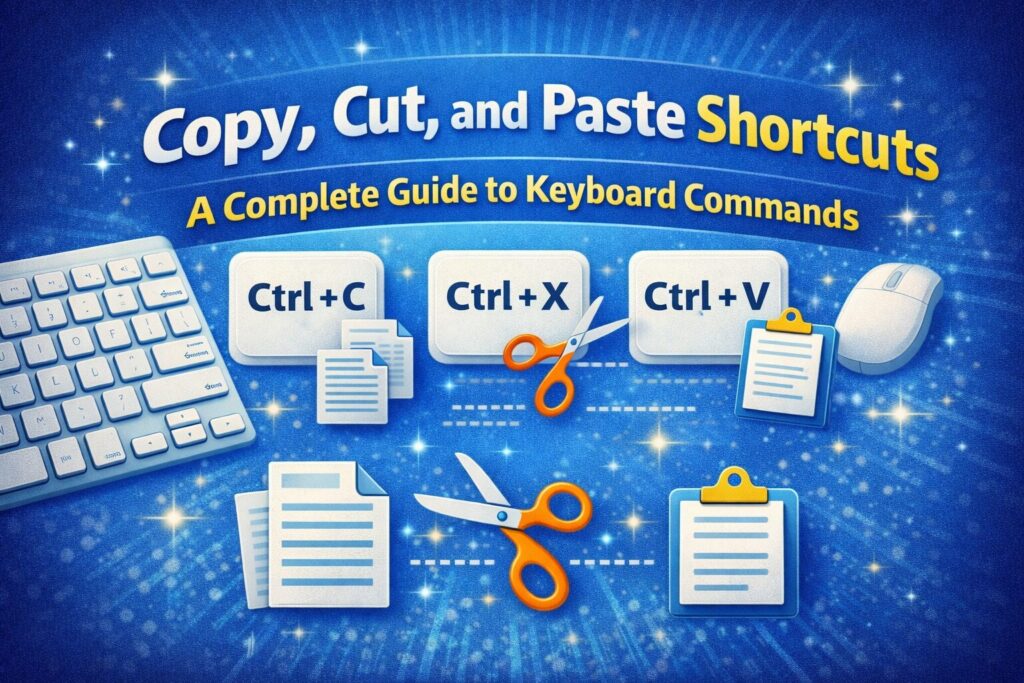
Keyboard shortcuts are essential tools that help computer users work faster and more efficiently. Among the most commonly used shortcuts are copy, cut, and paste commands. These simple keyboard combinations allow users to duplicate, move, and insert content quickly without relying on menus or a mouse.
Whether someone is writing a document, editing a spreadsheet, organizing files, or conducting online research, these shortcuts play a crucial role in everyday digital tasks. They are supported across most operating systems, including Windows and macOS, and work in a wide variety of applications such as word processors, web browsers, email programs, and file managers.
Learning how to properly use copy, cut, and paste shortcuts can significantly improve workflow efficiency. Instead of repeatedly typing the same information or manually dragging content between locations, users can move information instantly using just a few keys.
Key Takeaways
- Copy, cut, and paste shortcuts are universal keyboard commands used in most computer systems.
- These shortcuts allow users to quickly duplicate, move, or insert text, files, images, and other digital content.
- Windows and macOS use similar shortcuts, although some keys differ slightly.
- The clipboard temporarily stores copied or cut content until it is pasted elsewhere.
- Advanced paste options allow users to remove formatting or paste specific data types.
- Clipboard managers can store multiple copied items for future use.
- Mastering keyboard shortcuts helps improve productivity and reduce repetitive actions.
What Are Copy, Cut, and Paste Shortcuts?
Copy, cut, and paste shortcuts are keyboard-based commands designed to control how digital content is duplicated or moved within a computer system.
These commands interact with a feature called the clipboard, which acts as temporary storage for copied or cut content.
Each command has a specific purpose:
Copy
The copy command duplicates selected content and stores it in the clipboard while leaving the original content unchanged. This allows users to paste the same information in multiple locations.
Cut
The cut command removes selected content from its current location and places it in the clipboard. Once cut, the content can be pasted elsewhere.
Paste
The paste command inserts content stored in the clipboard into a new location within a document, file, or application.
These actions can be performed using menus, right-click options, or keyboard shortcuts. However, keyboard shortcuts are the fastest and most efficient method.
Standard Copy, Cut, and Paste Keyboard Shortcuts
Most computer systems support standardized keyboard shortcuts for copy, cut, and paste operations. These shortcuts work in a wide range of applications including word processors, spreadsheets, browsers, and file management systems.
Windows Keyboard Shortcuts
On Windows computers, the Control (Ctrl) key is used to activate most shortcuts.
Common commands include:
Copy:
Ctrl + C
Cut:
Ctrl + X
Paste:
Ctrl + V
Paste as Plain Text (in supported apps):
Ctrl + Shift + V
Clipboard History:
Windows + V
MaqOS Keyboard Shortcuts
Apple computers use the Command (⌘) key instead of the Control key for most shortcut commands.
Common macOS shortcuts include:
Copy:
Command (⌘) + C
Cut:
Command (⌘) + X
Paste:
Command (⌘) + V
Paste and Match Style:
Command (⌘) + Shift + V
While the keys are slightly different, the functionality remains the same as on Windows systems.
Understanding How the Clipboard Works
The clipboard is an internal system feature that temporarily stores copied or cut content. When a user performs a copy or cut command, the selected item is placed in the clipboard until it is pasted elsewhere.
This stored data can include:
- Text
- Images
- Files
- Links
- Spreadsheet cells
- Formatted content
In most systems, the clipboard can hold only one item at a time. When new content is copied, the previous clipboard item is replaced.
However, newer operating systems and third-party tools provide extended clipboard functionality that allows multiple items to be stored and accessed.
Clipboard History and Advanced Clipboard Features
Some modern operating systems include clipboard history, which keeps a record of multiple copied items.
For example, Windows provides clipboard history through the shortcut:
Windows Key + V
This feature allows users to view previously copied items and select which one they want to paste.
Clipboard history can be especially useful when:
- Researching information online
- Copying data between documents
- Working with repetitive text entries
- Collecting references or notes
Paste Options and Formatting Control
When pasting content, formatting can sometimes cause problems. For example, text copied from a website may contain different fonts, colors, or spacing that do not match the destination document.
Paste as Plain Text
The Paste as Plain Text option removes all formatting from copied content and keeps only the raw text.
This means the pasted text will automatically adopt the formatting of the document where it is inserted.
Paste as plain text is commonly used when:
- Copying information from websites
- Combining content from multiple sources
- Cleaning inconsistent formatting
- Writing academic or professional documents
Paste Special in Spreadsheet Applications
Spreadsheet programs such as Excel or Google Sheets provide advanced paste tools called Paste Special.
These options allow users to paste only specific elements of copied data.
Common options include:
- Values only
- Formulas only
- Formatting only
- Column widths
- Data validation rules
Clipboard Managers and Productivity Tools
A clipboard manager is software designed to extend the capabilities of the default clipboard.
Instead of storing just one copied item, clipboard managers can store multiple entries and allow users to access them later.
Typical features include:
- Multi-item clipboard history
- Searchable clipboard database
- Custom keyboard shortcuts
- Automatic content organization
- Secure storage options
These tools are especially helpful for professionals who frequently reuse information.
Common users of clipboard managers include:
- Writers and bloggers
- Software developers
- Office workers
- Researchers
- Students
Practical Uses of Copy, Cut, and Paste Shortcuts
Copy, cut, and paste shortcuts are used in many everyday computing activities.
Some of the most common applications include:
Document Writing and Editing
Writers often copy and paste text when reorganizing paragraphs, quoting references, or transferring content between documents.
Data Entry and Spreadsheets
Spreadsheet users frequently copy formulas, duplicate data rows, and paste calculated values.
File Organization
In file managers, cut and paste commands allow users to move files and folders between directories.
Email Communication
Users can quickly paste links, attachments, and copied text into emails.
Web Research
Researchers commonly copy text snippets, references, and links from websites into notes or documents.
Accessibility and Ergonomic Benefits
Keyboard shortcuts also play an important role in accessibility and ergonomics.
Using keyboard commands reduces the need for constant mouse movement, which can help minimize repetitive strain on the hands and wrists.
For users with limited mobility or difficulty using a mouse, keyboard shortcuts provide an alternative method for interacting with computer systems.
Accessibility tools often rely on keyboard-based navigation to ensure digital environments remain usable for everyone.
Common Mistakes to Avoid
While copy, cut, and paste shortcuts are simple to use, certain mistakes can lead to confusion or data loss.
Here are some common issues to watch for:
Accidentally Overwriting Clipboard Content
Copying new content automatically replaces the previous clipboard item. Users may lose important copied information if they forget to paste it first.
Pasting Incorrect Formatting
Copying from websites or documents may introduce unwanted fonts, colors, or spacing. Using paste as plain text can help avoid this issue.
Storing Sensitive Data in Clipboard History
Clipboard history may temporarily store passwords or personal information. Users should clear clipboard history when working with sensitive data.
Using Clipboard Tools Without Privacy Awareness
Some clipboard managers store data locally or in the cloud. Understanding privacy settings is important when using these tools.
FAQs
What is the difference between copy and cut?
Copy duplicates selected content and keeps the original in place. Cut removes the content from its original location before placing it in the clipboard.
Can I paste text without formatting?
Yes. Many applications provide a paste as plain text option that removes formatting and keeps only the raw text.
Does clipboard history store copied content permanently?
No. Clipboard history is usually temporary and may be cleared automatically or manually depending on system settings.
Do all programs support the same shortcuts?
Most programs support standard copy, cut, and paste shortcuts. However, some specialized software may use custom shortcuts or additional options.
Conclusion
Copy, cut, and paste shortcuts are fundamental tools that make digital work faster and more efficient. These simple keyboard commands allow users to duplicate, move, and insert information across documents, applications, and files with minimal effort.
Understanding how clipboard systems function, how paste options control formatting, and how advanced clipboard tools work can significantly improve productivity.